-
Courses

Courses
Choosing a course is one of the most important decisions you'll ever make! View our courses and see what our students and lecturers have to say about the courses you are interested in at the links below.
-
University Life

University Life
Each year more than 4,000 choose University of Galway as their University of choice. Find out what life at University of Galway is all about here.
-
About University of Galway

About University of Galway
Since 1845, University of Galway has been sharing the highest quality teaching and research with Ireland and the world. Find out what makes our University so special – from our distinguished history to the latest news and campus developments.
-
Colleges & Schools

Colleges & Schools
University of Galway has earned international recognition as a research-led university with a commitment to top quality teaching across a range of key areas of expertise.
-
Research & Innovation

Research & Innovation
University of Galway’s vibrant research community take on some of the most pressing challenges of our times.
-
Business & Industry

Guiding Breakthrough Research at University of Galway
We explore and facilitate commercial opportunities for the research community at University of Galway, as well as facilitating industry partnership.
-
Alumni & Friends

Alumni & Friends
There are 128,000 University of Galway alumni worldwide. Stay connected to your alumni community! Join our social networks and update your details online.
-
Community Engagement

Community Engagement
At University of Galway, we believe that the best learning takes place when you apply what you learn in a real world context. That's why many of our courses include work placements or community projects.
 Accessibility & Language
Getting Started

Download & Install Microsoft Authenticator App
To avail of MFA via Passkey, push notification via app or App notification code requires you to download Microsoft's Authenticator App to your mobile device.
Setting Up Microsoft MFA
- Ensure you have the Microsoft Authenticator App installed on your mobile device. You can download it from the App Store or Google Play Store.
- Sign In
- Follow the onscreen instructions - this for first time setup
- Click Complete
To modify your MFA setup, click here.
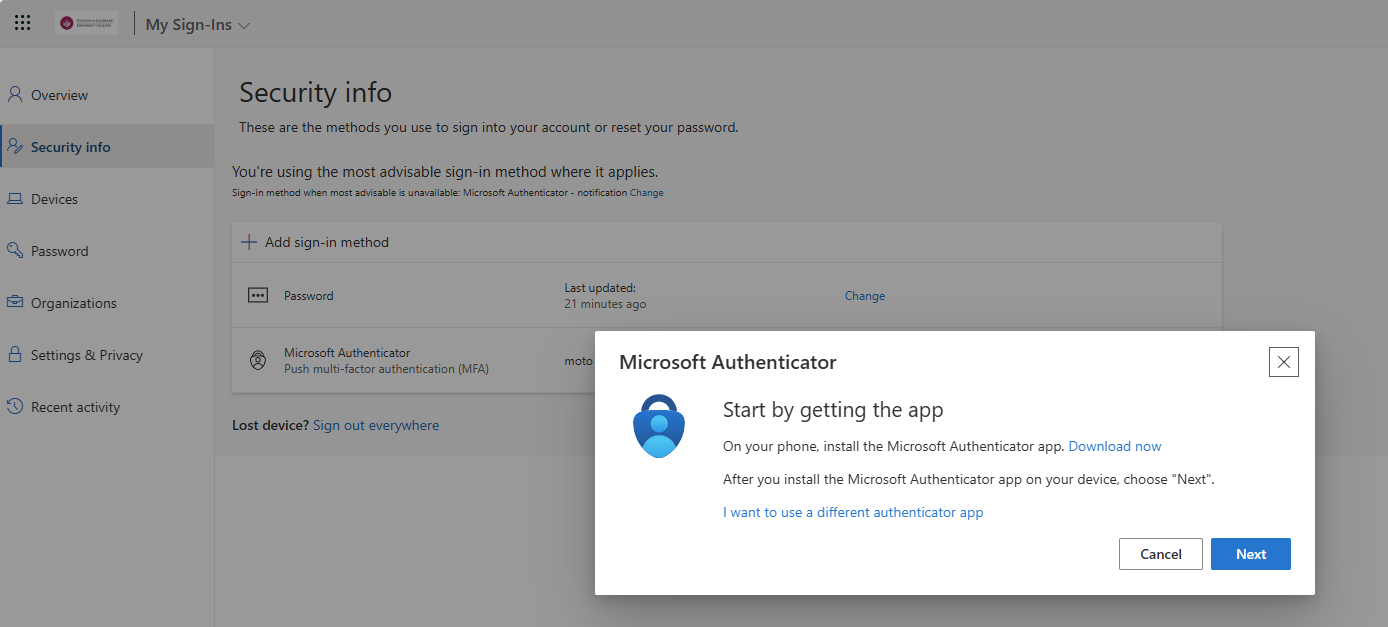
Three Methods of Authentication
You can select one of the three methods of authentication available to you on your account. They are listed below, in order of ISS recommended preference.
Option 1: Verification Via Authenticator Push Notification – ISS Recommendation
Set Up Push Notifications
- Open the Microsoft Authenticator app, tap the + icon, and select Work or school account.
- Use your device's camera to scan the QR code displayed on your computer screen.
- Once scanned, the app will send a test notification to your device. Approve the notification to complete the setup.
Option 2: Verification Via Authenticator Code
- Open the Microsoft Authenticator app, tap the + icon, and select Work or school account.
- Use your device's camera to scan the QR code displayed on your computer screen.
- Once scanned, the app will generate a 6-digit verification code.
- Enter the 6-digit code into the verification field on your computer screen
Option 3: Verification Via Authenticator Passkey
- Open the Microsoft Authenticator app, tap the + icon, and select Work or school account.
- Select scan QR code.
- Use your device's camera to scan the QR code displayed on your computer screen.
- Follow the onscreen instructions to complete.
Setting up your Mailboxes
Add Your Mailbox on Android App via Outlook
- Download and install the Outlook app from the Google Play Store.
- Open the Outlook app and tap "Get Started."
- Enter your email address and tap "Continue."
- Enter your password and tap "Sign In."
- Set up MFA:
- If prompted, choose to receive a verification via Authenticator App or Passkey.
- If using the Authenticator app, open the app and enter the code provided.
- If using Passkey Approve on phone.
- Complete the setup by following any additional prompts
Add Your Mailbox on Android App via Gmail
- Open the Gmail app on your Android device.
- Tap the menu icon (three horizontal lines) and select "Settings."
- Tap "Add account".
- Select "Exchange and Microsoft 365".
- Enter your email address and tap "Next."
- Enter your password and tap "Next."
- Set up MFA:
- If prompted, choose to receive a verification via Authenticator App or Passkey.
- If using the Authenticator app, open the app and enter the code provided.
- If using Passkey Approve on phone.
- Complete the setup by following any additional prompts
Add Your Mailbox on iPhone App
- Open the Settings app on your iPhone.
- Navigate to Mail > Accounts > Add Account.
- Select your email provider (Outlook).
- Enter your email address and tap "Next."
- Enter your password and tap "Next."
- Set up MFA:
- If prompted, choose to receive a verification via Authenticator App or Passkey.
- If using the Authenticator app, open the app and enter the code provided.
- If using Passkey Approve on phone.
- Complete the setup by following any additional prompts
Setting Up Mailbox for Mac
- Open the Mail app on your Mac.
- Go to Mail > Add Account.
- Select your email provider (Outlook).
- Enter your email address and password.
- Set up MFA:
- If prompted, choose to receive a verification via Authenticator App or Passkey.
- If using the Authenticator app, open the app and enter the code provided.
- If using Passkey Approve on phone.
- Complete the setup by following any additional prompts
Setting Up Mailbox for Windows
- Open the Mail app on your Windows device.
- Select "Add account" from the welcome screen or go to Settings > Manage Accounts.
- Choose your email provider (Outlook).
- Enter your email address and password.
- Set up MFA:
- If prompted, choose to receive a verification via Authenticator App or Passkey.
- If using the Authenticator app, open the app and enter the code provided.
- If using Passkey Approve on phone.
- Complete the setup by following any additional prompts

Modify MFA Your Setup
Click Here to Learn How to Modify Your MFA