-
Courses

Courses
Choosing a course is one of the most important decisions you'll ever make! View our courses and see what our students and lecturers have to say about the courses you are interested in at the links below.
-
University Life

University Life
Each year more than 4,000 choose University of Galway as their University of choice. Find out what life at University of Galway is all about here.
-
About University of Galway

About University of Galway
Since 1845, University of Galway has been sharing the highest quality teaching and research with Ireland and the world. Find out what makes our University so special – from our distinguished history to the latest news and campus developments.
-
Colleges & Schools

Colleges & Schools
University of Galway has earned international recognition as a research-led university with a commitment to top quality teaching across a range of key areas of expertise.
-
Research & Innovation

Research & Innovation
University of Galway’s vibrant research community take on some of the most pressing challenges of our times.
-
Business & Industry

Guiding Breakthrough Research at University of Galway
We explore and facilitate commercial opportunities for the research community at University of Galway, as well as facilitating industry partnership.
-
Alumni & Friends

Alumni & Friends
There are 128,000 University of Galway alumni worldwide. Stay connected to your alumni community! Join our social networks and update your details online.
-
Community Engagement
Community Engagement
At University of Galway, we believe that the best learning takes place when you apply what you learn in a real world context. That's why many of our courses include work placements or community projects.
 Accessibility & Language
Windows 10 End Of Life
Windows 10 End of Support October 2025
Microsoft will end support for Windows 10 on 14th October 2025. After this date, no further updates will be provided for this operating system for most users.
To maintain device and network security, the University has purchased Extended Security Updates (ESU) for University devices which continue to run Windows 10. This ensures that critical Microsoft updates will continue to install on supported University devices beyond the October 2025 end-of-support date.
Privately owned devices are excluded from this program.
It is strongly recommended that suitable standard devices be re-imaged to Windows 11 over the coming months or upgraded using Windows Update.
Device Guidance - Standard Procurement Approved University Devices
-
Standard devices purchased from Dell in recent months come preloaded with the University’s Windows 11 image; no further action is required for these devices.
-
Standard devices purchased from 2020 onwards are generally compatible with Windows 11 and may be upgraded to Windows 11.
-
Standard devices purchased prior to 2020 are unlikely to meet Windows 11’s technical requirements and are typically out of warranty. These should be scheduled for replacement as soon as possible but you can log a ticket to the Service Desk and we can review the suitability of your device.
-
If your standard device is in warranty and meets Windows 11 requirements, ISS can re-image it. Please log a ticket to initiate this process, ensuring first that your data is backed up before handing over the device. Instructions on how to log a ticket can be found here. Devices that are well out of warranty will not be re-imaged by ISS. These should be retired and replaced.
- If Windows Updates offers to upgrade to Windows 11, the recommendation is that you take this option. It is advisable to ensure all local data is backed up to OneDrive BEFORE you start this process. The upgrade process can take some time and involve a number of restarts.
You can check your Dell warranty status by following instructions here.
If you need help assessing your device’s compatibility or planning for replacement, please contact the Service Desk.
For details on Windows 11 system requirements, visit Windows 11 Specifications | Microsoft.
Windows 10 to 11
Windows 11 Installation Assistant
Microsoft allow Windows 10 devices to upgrade to the latest version of Windows 11 subject to the device meeting the minimium specified hardware requirements. Generally, this is any device that is up to 5 years of age.
You can download and use the Windows 11 Installation Assistant which will advise you if your device can be upgraded or not. Please ensure you follow any instructions given and before you begin the process, have all of your data backed up.
Note this process can take a significant amount of time and will take a number of restarts to complete.
You need admin rights to run the tool and do the install.
Please ensure you have a stable network connection.
Windows Update
If you do NOT see the option to upgrade via Windows Update, it is advisable to look at replacing your device. However, please log a ticket where ISS can review the device to confirm its ability or otherwise to get an upgrade.
Staff can start the update process themselves once Windows Updates confirms your devices suitability. However, it is recommended that you:
- Ensure all data on the device is synching correctly to OneDrive. Be sure to login to the web version of OneDrive and logging in with your University Accounts. Toggle to OneDrive using the dots on the top left of the screen
- Be aware that some programs may not work with Windows 11. By in large, these can be older legacy pieces of software. It is up to the user to check this and satisfy themselves that an upgrade will work for them
- You may need to reinstall some programs if you find they do not work correctly after the upgrade
- Note the process can be time consuming and may take a number of restarts to complete
- You must be on the internet for the upgrade to complete at all times. Please use a wired network connection if possible
- If you are using a laptop, please ensure you have it connected to a charger
Click on Start > Settings (gear icon) > Update & Security > Windows Update and click Check for updates
Please note that Microsoft may change the screenshots below periodically.
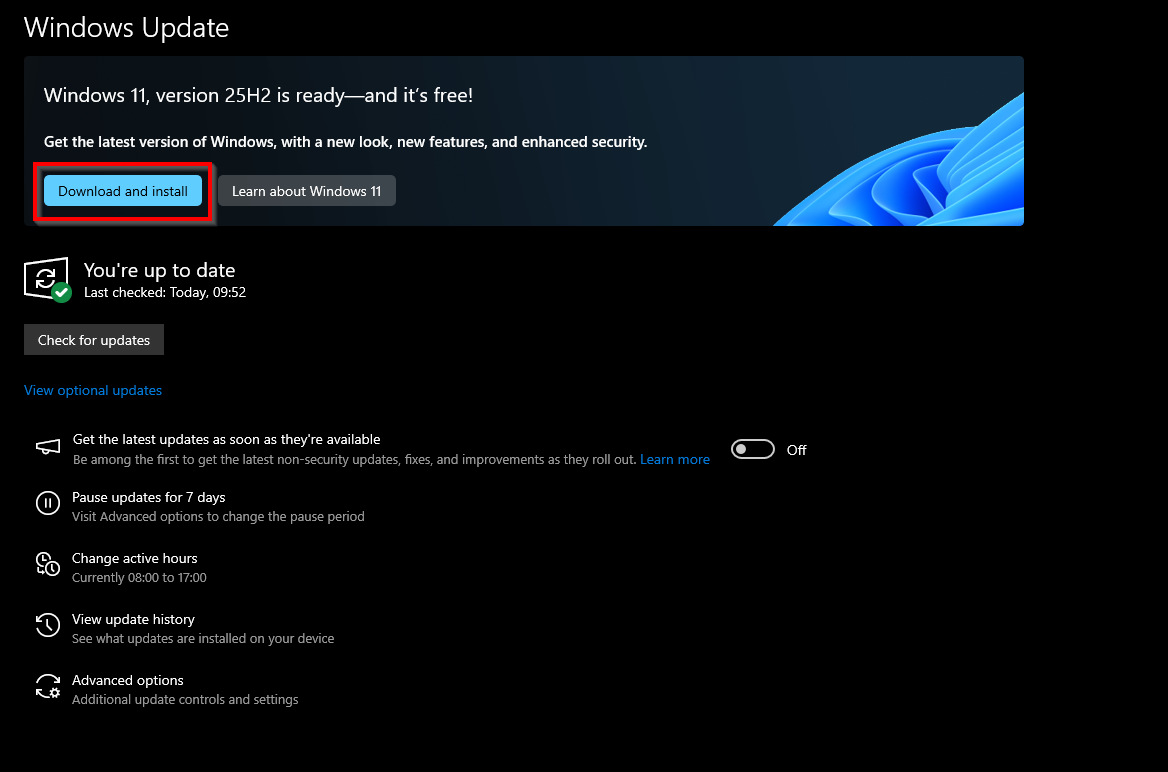
Step 1 If your device meets the hardware requirements, you will offered the upgrade
Click Download and Install
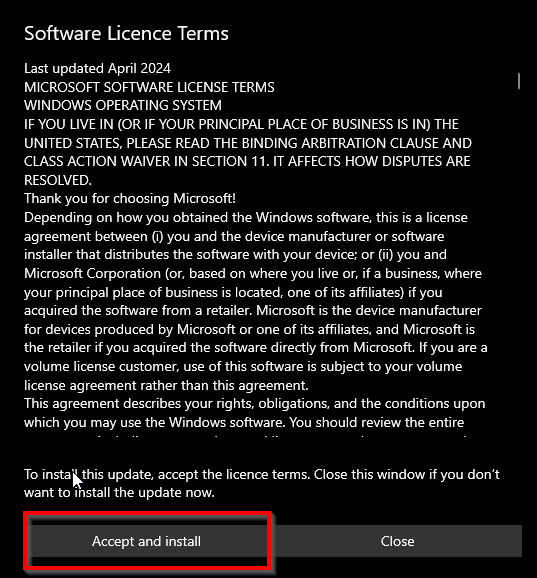
Step 2 - Accept and install
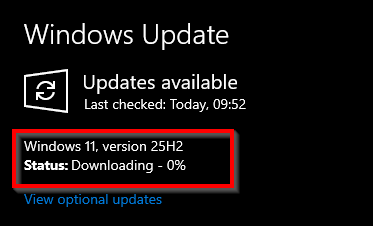
Step 3 - The process will kick off by downloading the upgrade files.
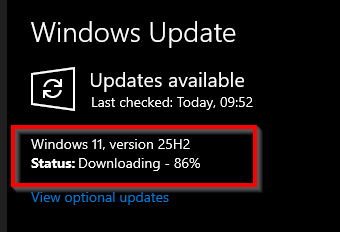
Step 4 - You will see a a download progress bar
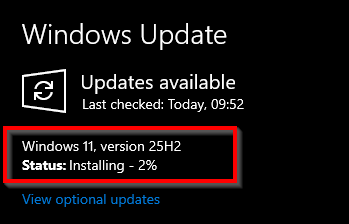
Step 5 - An installation progress bar will then appear
Once it has finished installing, you will be prompted to restart your device.
Please ensure you save any work you may be in before you restart.
The device may restart a number of times and you must let it finish to the end.